Here’s an oddly specific walk-through on how to connect your Vinoshipper products to your Google Merchant Center (GMC) so that you can show up in Google Shopping free listings. I found myself doing this for a client and the workaround could be beneficial if you’re searching for this kind of solution. A lot of purpose built systems don’t have these types of integrations built-in. I found this lot regarding winery-specific purpose-built platforms, and in this case, Vinoshipper, but there is a solution.
Why add your products into Google Merchant Center?
By hooking up your data feed to your Google Merchant Center you essentially unlock free listings in the Google shopping tab and turn, these can also be added to Google Ad campaigns for e-commerce shopping campaigns like Performance Max. Without a data feed, your products won’t show up in the shopping tab of Google and you won’t be able to add them to your Performance Max campaign dynamically.
How do you get your products into the Google Merchant Center?
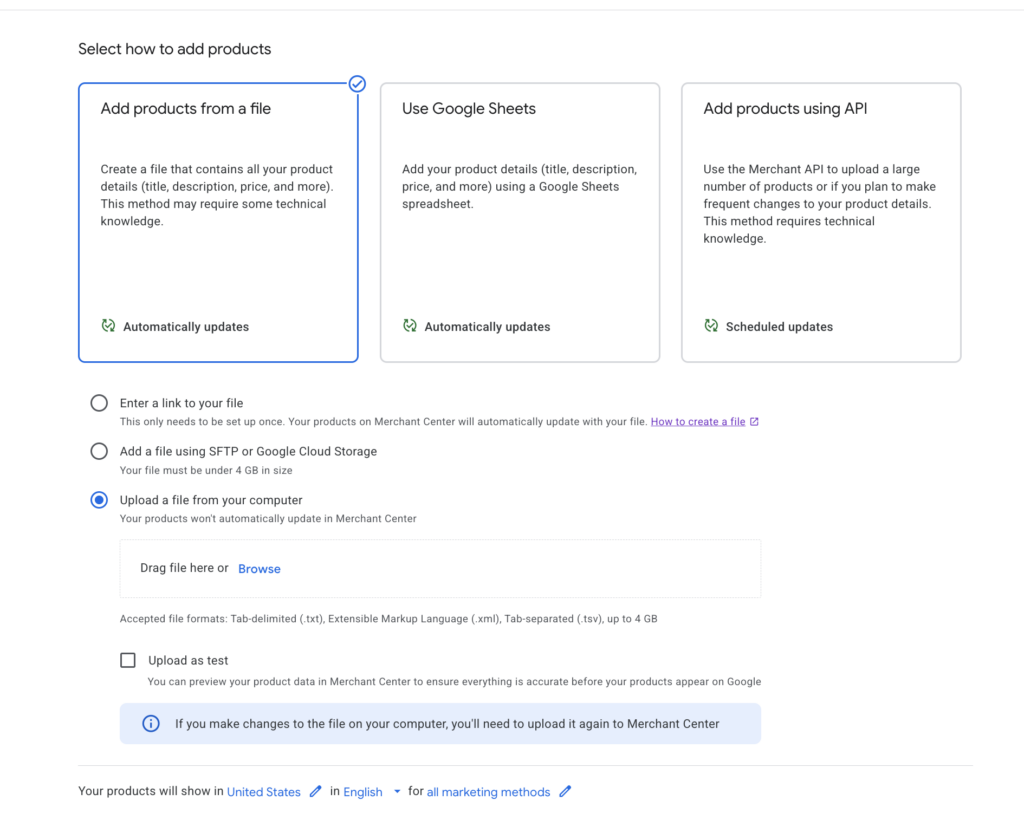
There are several different ways to get your products into Google Merchant Center using data feeds one of them is an XML fee a file that you either host on your site, and ideally is dynamically generated so it will update as products get updated. Another is using an API but again some purpose built platforms don’t have this integration available. Another is if your store is located on the same verified domain Google can scrape product data directly. And lastly a static Google Sheet you can manage. We’re going to use a xml file that we upload to GMC.
Let’s dive into our case study…
In this particular client case study, my client, South Hill Cider, a leading cidery in Ithaca, NY, has a Squarespace site and uses an integration with Vinoshipper so that their product URL’s are on South Hill Cider (https://www.southhillcider.com/buy-cider) domain, but powering the cart is the Vinoshipper URLs (https://vinoshipper.com/shop/south_hill_cider). Our solution was to come up with a file that contains all our product data that we can upload to GMC.
To do this took some investigate and a little help with Claude.ai (or other LLM), you’ll also need to log into you vinoshipper account.
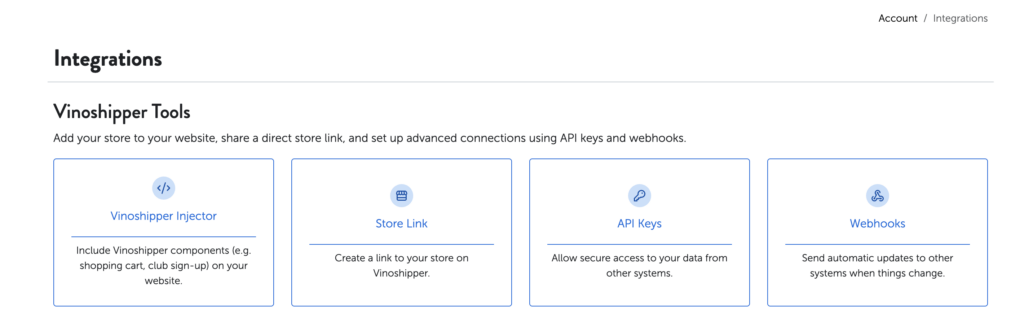
- Locate your link to your store in vinoshipper. It’s located in Account/Integrations, and will look something like https://vinoshipper.com/shop/{your-store-name}. Open that page in a Chrome browser.
- In Chrome, open the Inspect tool by right clicking somewhere on the page and select “Inspect” (aka DevTools). Now we are going to find your JSON product feed:
- Locate the Network tab and search for “feeds” make sure you are using the right search bar.
- Refresh the page.
- You should see a Request URL in the Headers that looks something like: https://vinoshipper.com/api/v3/feeds/vs/{your-unique-number}/products?includeProductGroup=true
- Open that link in a new tab.
- Now that we have your product data, we need to format it so GMC can read it (aka XML). Copy all that code.
- Navigate to https://www.site24x7.com/tools/json-to-xml.html and paste it in the left column and select Convert.
- Download the file, or copy and paste it into your own file editor (and save as XML).
- Now you can try adding this directly into Google Merchant Center Product Feed, but you might get errors. Worth a try though.
Most likely you’re going to need a few extra steps to fix errors.
In our case two errors occurred. First, we had a formatting issue that Claude was able to fix pretty quickly. GMC will give you the exact error and the lines it occurs on. I placed this into Claude.ai and it was able to fix it for me quickly:
I’m cleaning up a Google Merchant Center Product Feed XML file that Google kicked back with an error: {insert error}. Please help me reformat and export the corrected version.
Secondly, because our links are on vinoshipper.com and not on our verified URL southillcider.com they automatically got disapproved. So here is what we did:
- I went to our main product page: https://www.southhillcider.com/buy-cider
- Right Clicked to “View Source”
- Copied the body of the code (which contains all the links to our product pages, the ones that are on his southhillcider.com domain).
- Went back to Claude.ai and gave it the following prompt:
We are having disapprovals because the urls don’t match out verified domain. However, we do have these pages on our verified domain. Switch out the links using data extracted from our source: {paste source code}. Export as xml file.
That should generate a new xml file that you can add to your product feed source.
That should fix it for you!
The only downside to this process is that this is a static feed, meaning it is not dynamically updated, so you will want to revisit this process if you update your products regularly.
This process would potentially work with other systems as well with slight adjustments to help you find the JSON feed data.
Here are some images from the process: